Updates

Product updates

New features

Every Pingdex update filed under new features.

📱 Pingdex for Android 3.0: Rebuilt from the Ground Up
Pingdex for Android is a new app. Version 3.0 is rebuilt from scratch as a native Android app, so it looks at home on your phone and feels smoother to use, like version 3 of Pingdex for iPhone. Your lists, contacts, results and voicemail greetings are all where you left them.

What's new

  • Call controls stay with the contact: during a call, mute, speaker, the keypad and voicemail drop sit under the contact's details and giving history, so you can keep reading while you talk.
  • Calls keep going when you leave the app: a notification shows the call in progress, with a button to end it.
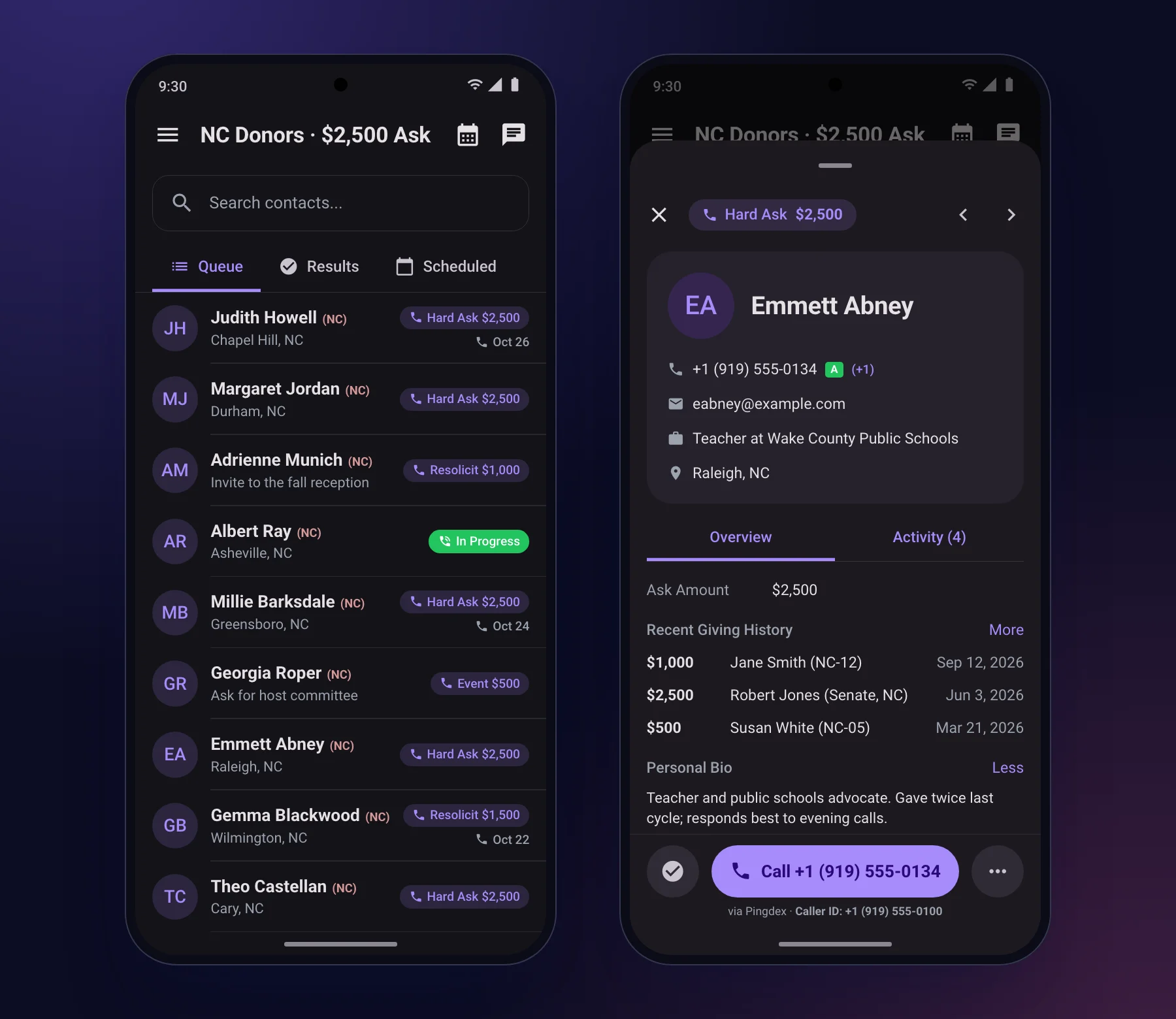
  • Dark mode: the app follows your phone's setting. To choose for yourself, open Settings and tap Appearance.
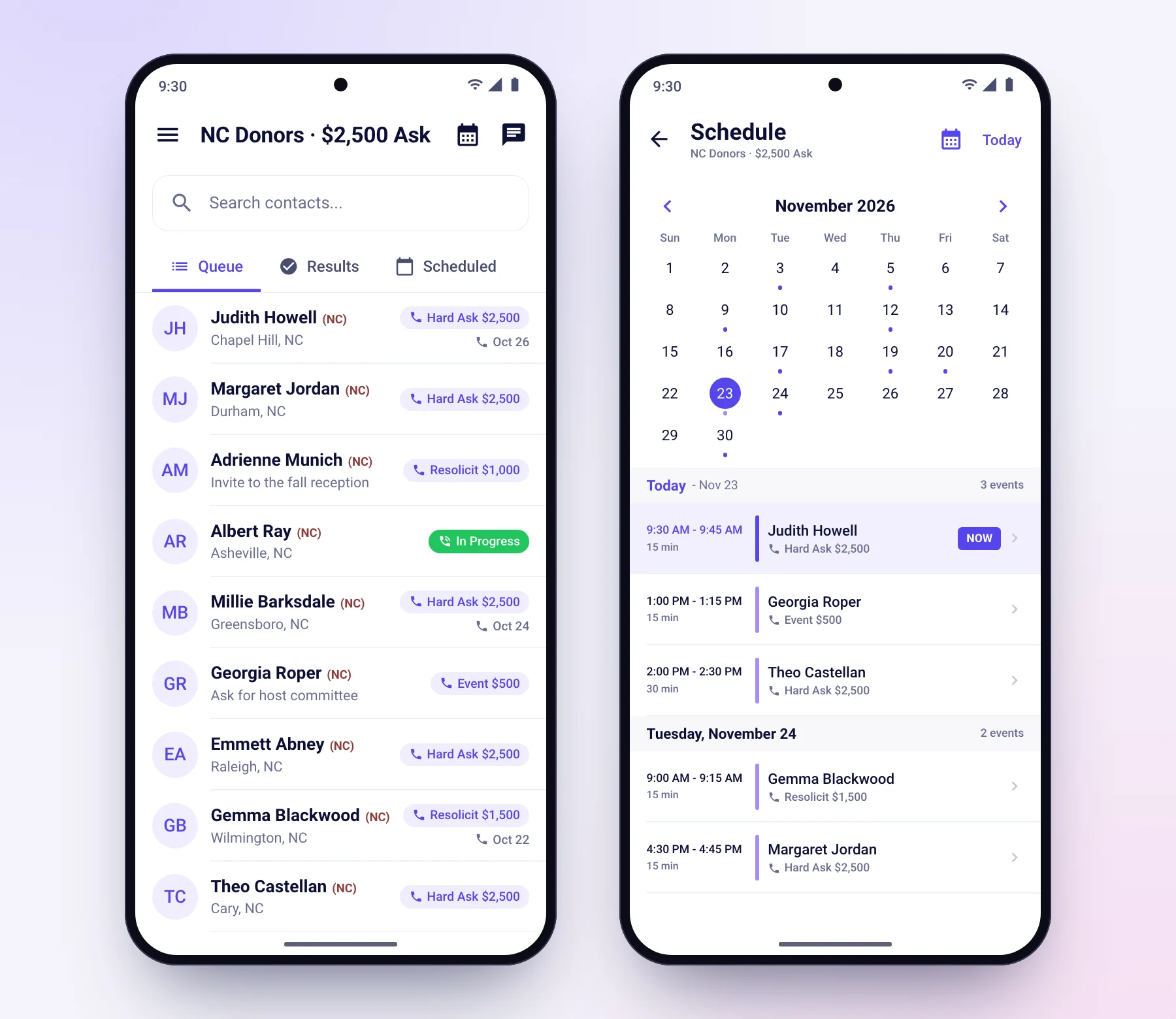
  • Month calendar in Schedule: see the whole month, with a dot on each day that has a scheduled call. Tap a day to jump to it.
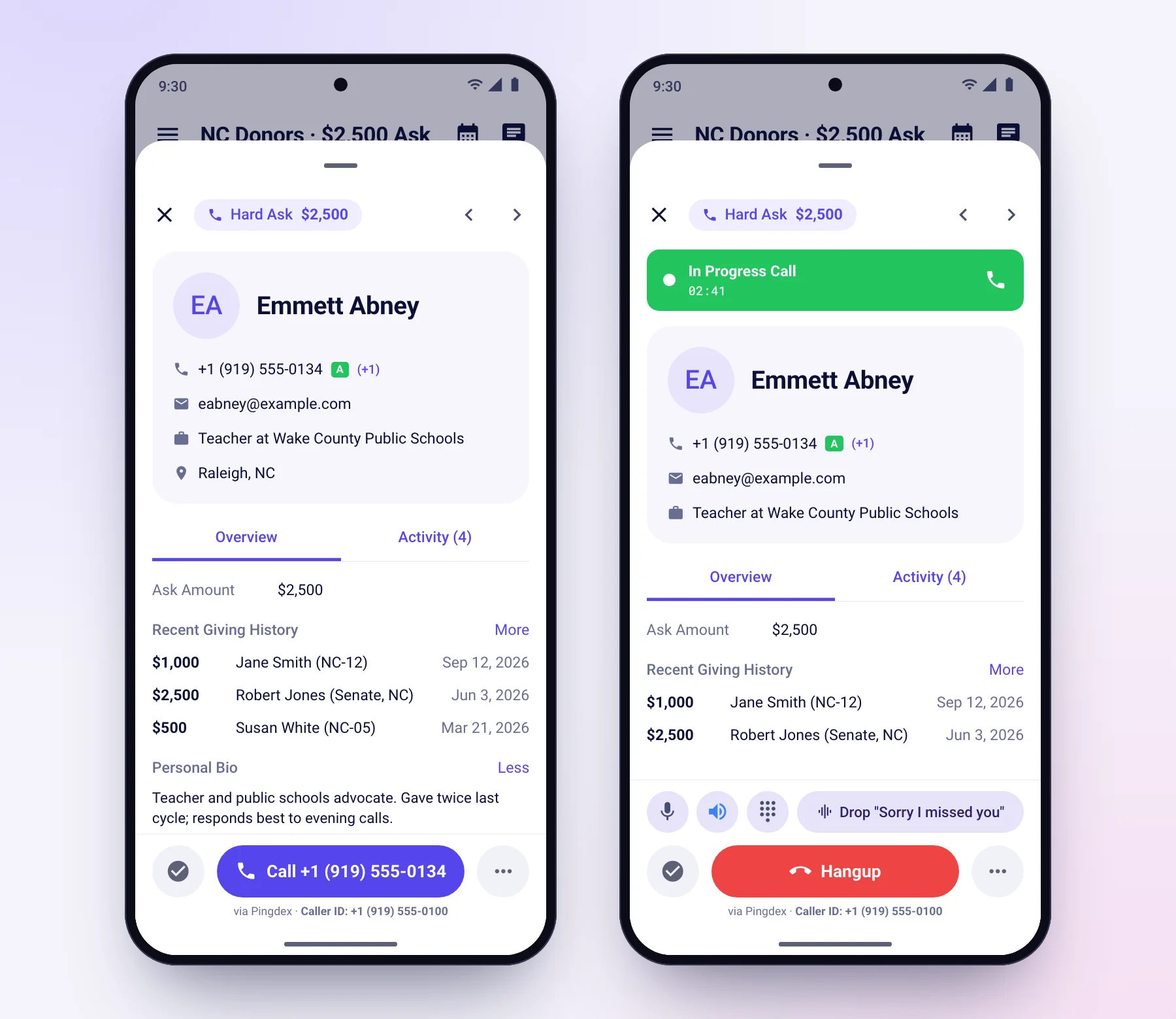
A contact in Pingdex for Android, before and during a call

The call list and a contact in dark mode

The call list and the month calendar in Schedule

How to get it

  1. Open Pingdex on Google Play on your Android phone.
  2. Tap Update. If your phone updates apps automatically, you may already have it.
  3. Open Pingdex. You stay signed in, so you can pick up where you left off.

Version 3.0 needs Android 7.0 or later.

Have questions or feedback? Send us a note at support@pingdex.app.
✏️ You can now manually Add, Edit and Delete Giving History

Keep a contact's giving history accurate right from their card in Pingdex. If you have External Giving History / Donor History on your account, you can now add missing contributions, correct existing entries, and remove contributions that shouldn't be there.

What's new

  • Add contributions: Record the amount, committee name, and contribution date.
  • Edit existing entries: Update those details without leaving the contact card.
  • Remove incorrect contributions: Review the amount, committee, and date in a confirmation dialog before deleting.

How to use it

  1. Open a contact card and hover over Recent Giving History.
  2. Click the pencil icon to manage contributions.
  3. Choose Add contribution, or use the edit or delete icon beside an existing entry.

Each contribution shows its amount, committee name, and date together in one line, making it easy to find the entry you need.

Have questions or feedback? Send us a note at support@pingdex.app.
💰 Pledges Now Sync Automatically to NGP VAN

Great news for organizations using our NGP integration — pledges you record in Pingdex now flow straight into your NGP, no manual entry needed!

What's New

When you log a pledge during call time, Pingdex now automatically creates a matching pledge record in NGP — with the amount and pledge date — right alongside the notes and call results we already sync.

Edits stay in sync too

Changed a pledge from $250 to $500 after a follow-up call? Pingdex updates the existing pledge in VAN rather than creating a second one. Each pledge is linked to its contact record, so your VAN data stays clean.

No duplicates, ever

If a matching pledge already exists in VAN for that contact, we skip it. You can re-sync without worrying about double-counting your call time results.

How to use it

There's nothing to turn on — if your organization has an NGP integration connected, pledge syncing is already working. Just record pledges the way you always have, and they'll show up in NGP automatically.

Have questions or feedback? Send us a note at support@pingdex.app.
📊 CSV Upload Improvements — Intelligent Column Matching

We are super excited to share a major update to a common pain point. We've made uploading your contact lists via CSV even easier!

What's New

Smarter Column Matching

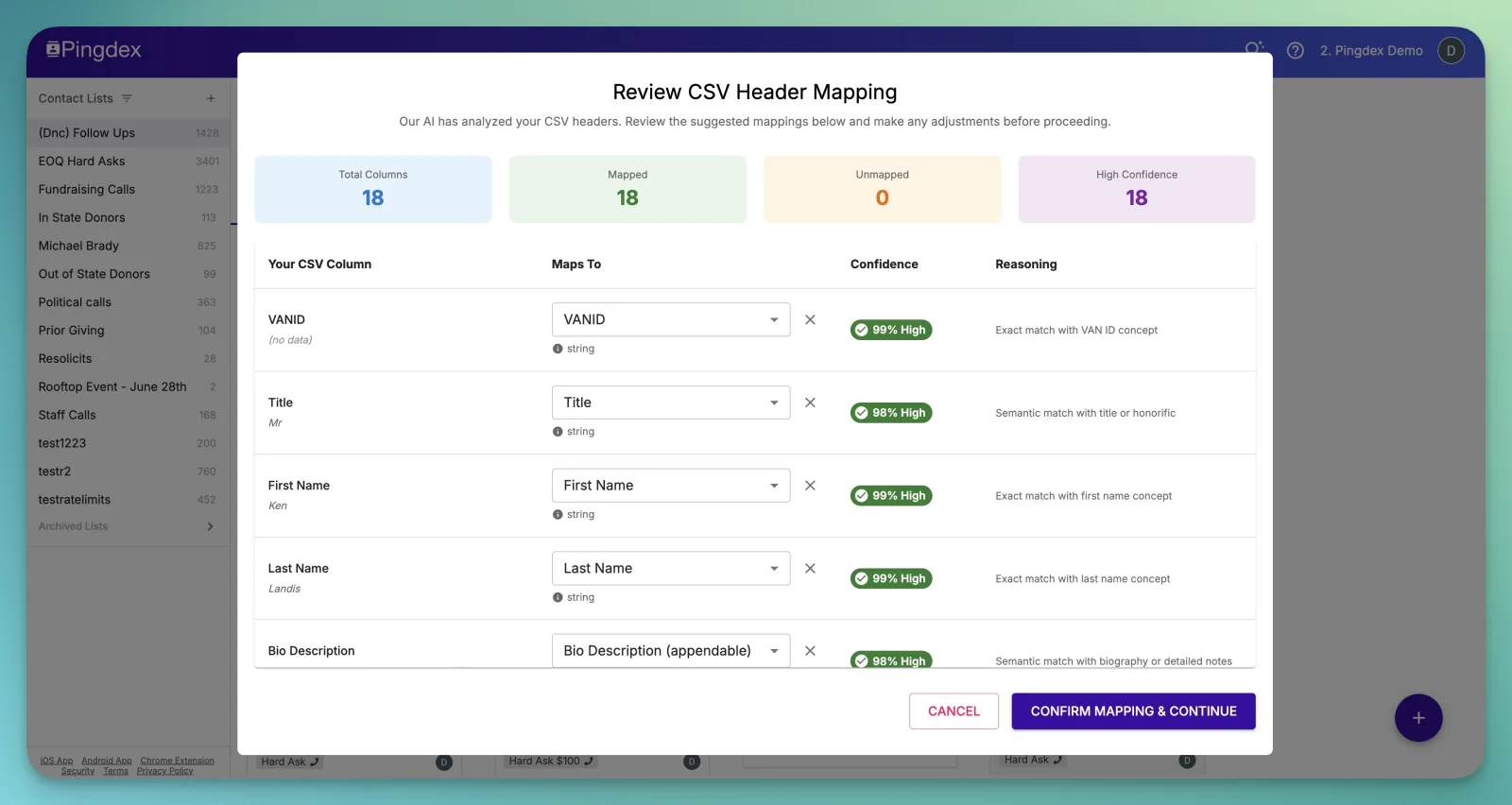
  • When you upload a CSV, we'll automatically figure out which columns match which fields in Pingdex
  • No more manual mapping and fiddling with CSV tools for every upload - just drag and drop your file in CSV format and we'll handle the rest.
  • Works with any CSV format, not just our template

How It Works

  1. Upload your CSV file as usual
  2. We'll show you our suggested column matches
  3. Review and adjust any matches if needed
  4. Confirm and import!

That's it - faster, smarter, and less clicking for you.

Enhanced Email Templates with File Attachments!

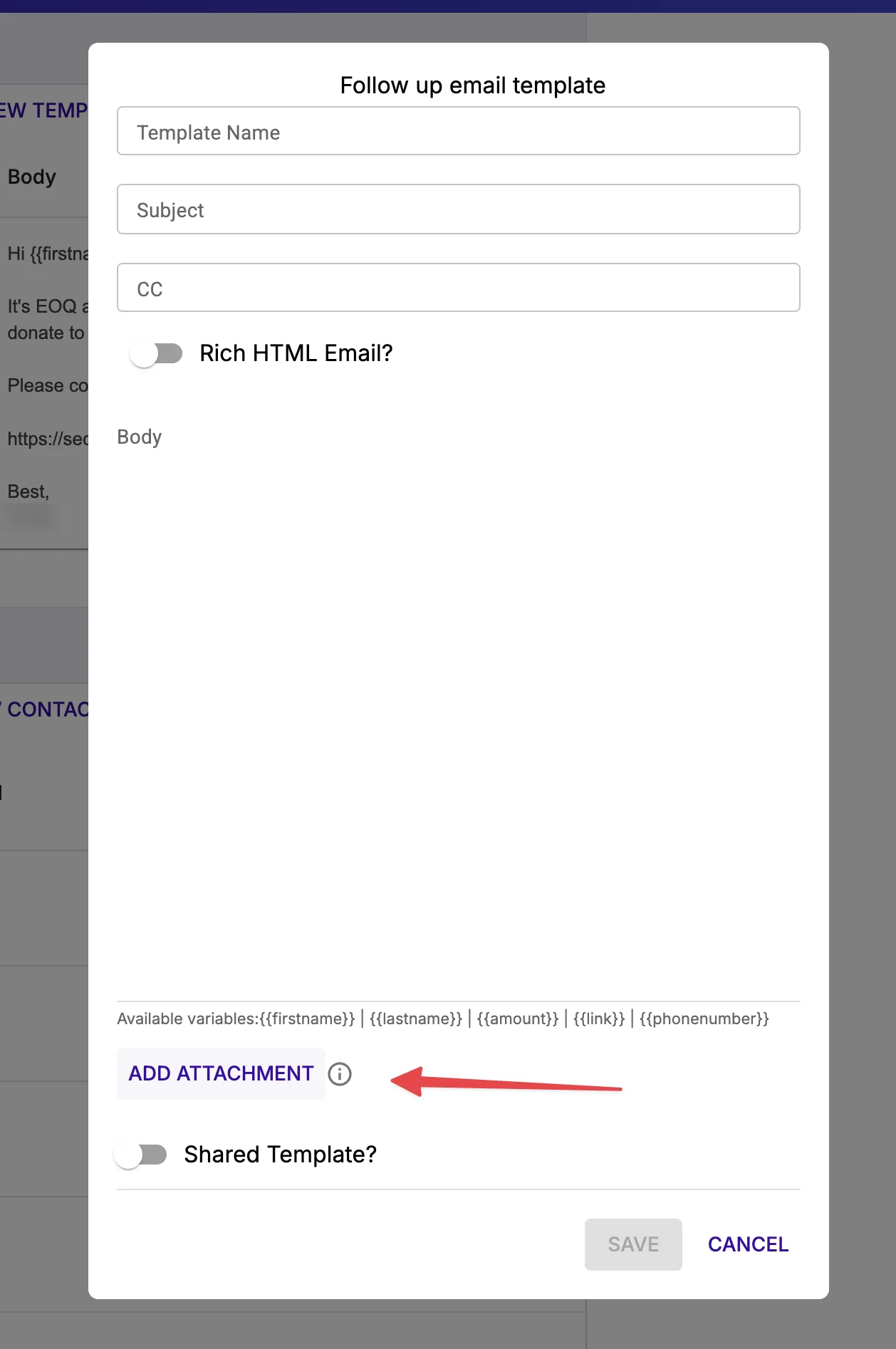
We're excited to announce an update to Email Templates. You can now attach both images and PDF documents to email templates. This provides the flexibility to include visual aids, such as event invites, campaign prospectus etc.

To set this up, go to your queue settings. Scroll to "Follow-up Email Templates" and edit or create a new template. In the editor you'll see a new "Add Attachment" button.

Enhanced Email Templates with File Attachments!

Important Note: Attachments through Email Templates are only supported when sending emails through the Web Dashboard when using Google to Send Email or through the Chrome extension.

Obtain New Outbound Caller ID Phone Numbers through Pingdex!

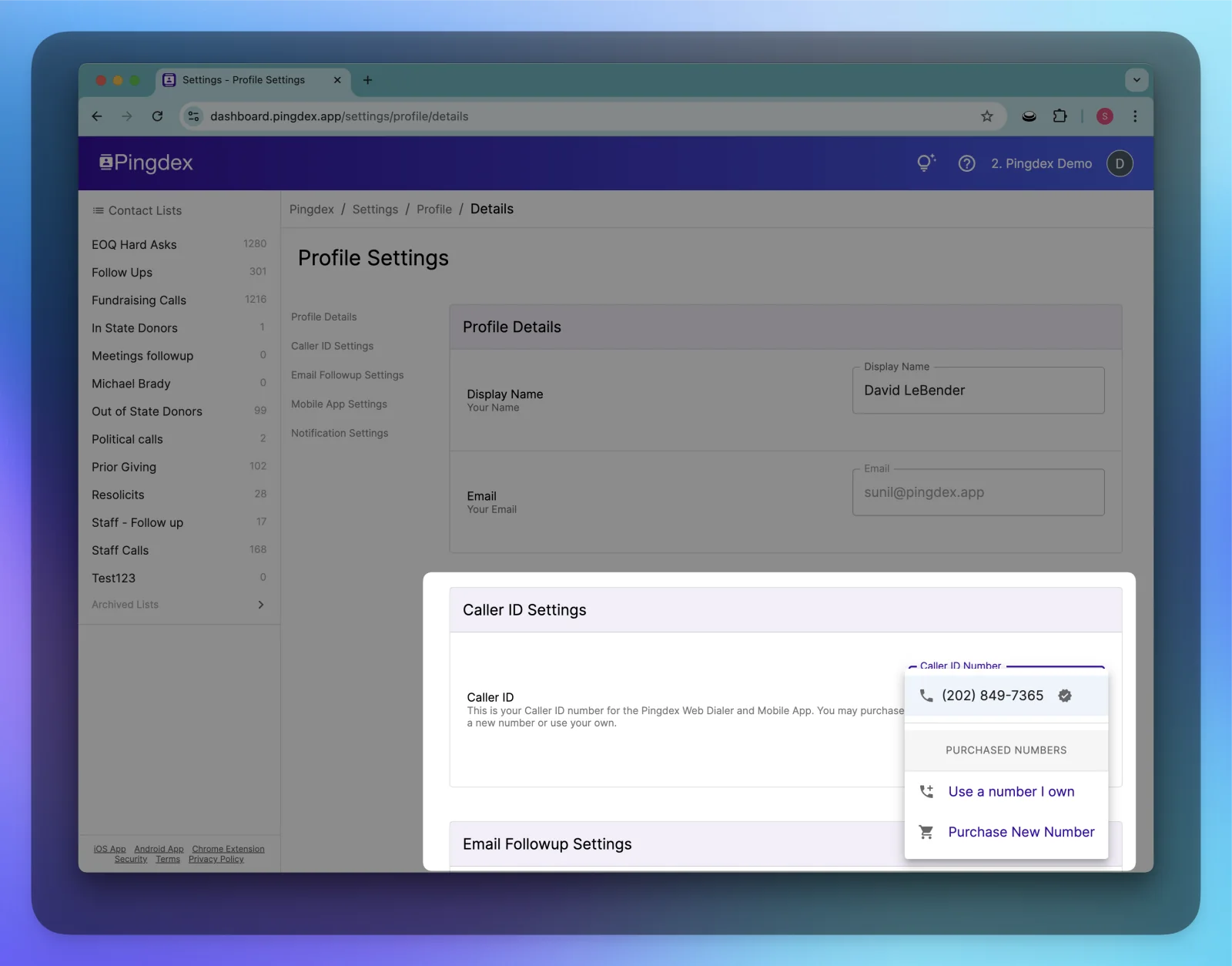
We're excited to share the release of the ability to purchase new outbound caller ID phone numbers through Pingdex. This allows you to obtain new numbers with an area code of your choosing. This can be powerful in achieving higher pick up rates when calling through relevant area codes.

To set this up follow these instructions:

  1. Click the Profile Icon (at the top right of your dashboard)
  2. Click Profile Settings
  3. Scroll to 'Caller ID Settings'

Here you'll be able to purchase a new virtual number ($5 / mo)Obtain New Outbound Caller ID Phone Numbers through Pingdex!

Questions? Shoot us a note: support@pingdex.app

Earlier updates