Updates

Product updates

Android updates

Every Pingdex update tagged Android.

📱 Pingdex for Android 3.0: Rebuilt from the Ground Up
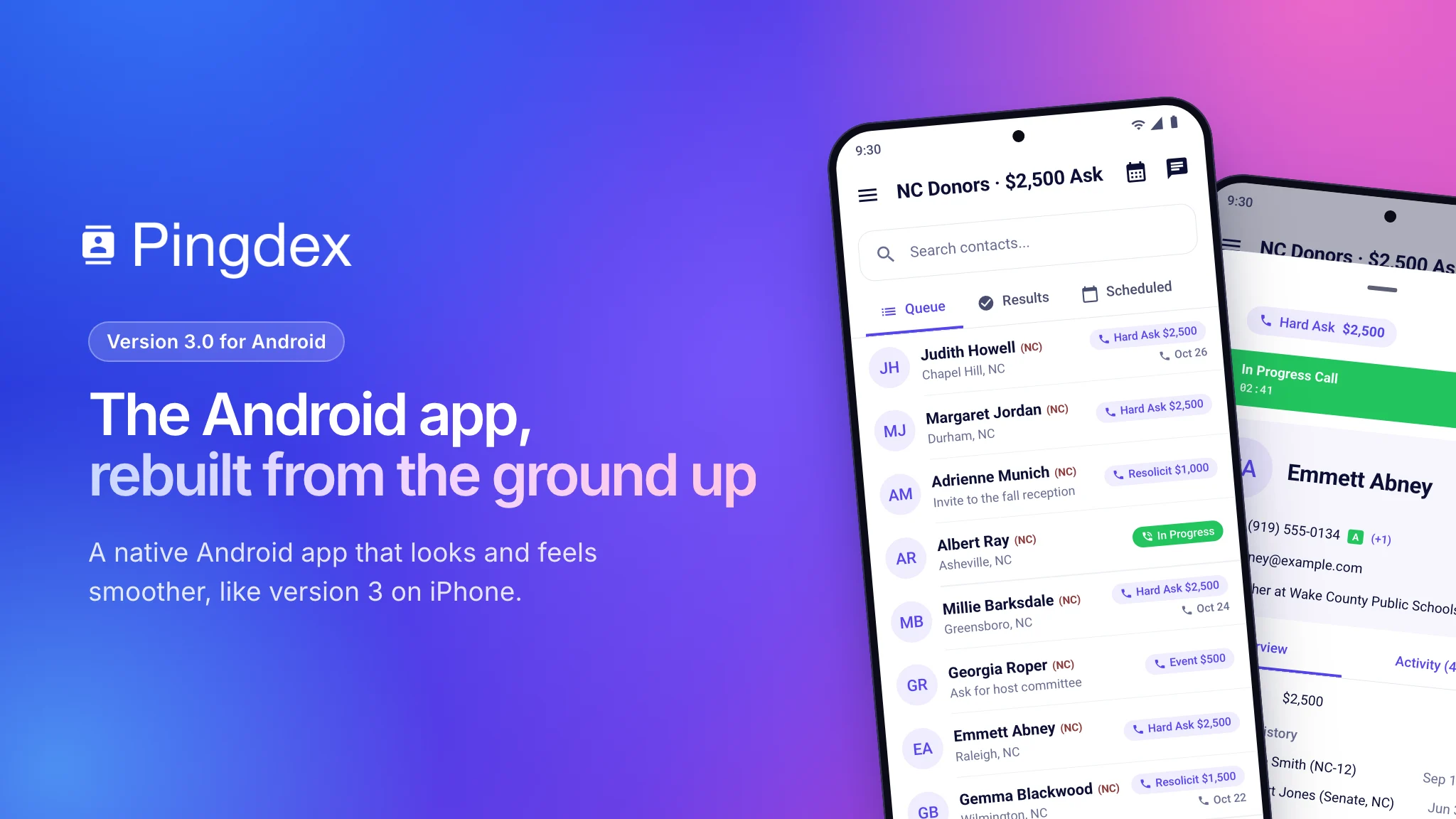
Pingdex for Android is a new app. Version 3.0 is rebuilt from scratch as a native Android app, so it looks at home on your phone and feels smoother to use, like version 3 of Pingdex for iPhone. Your lists, contacts, results and voicemail greetings are all where you left them.

What's new

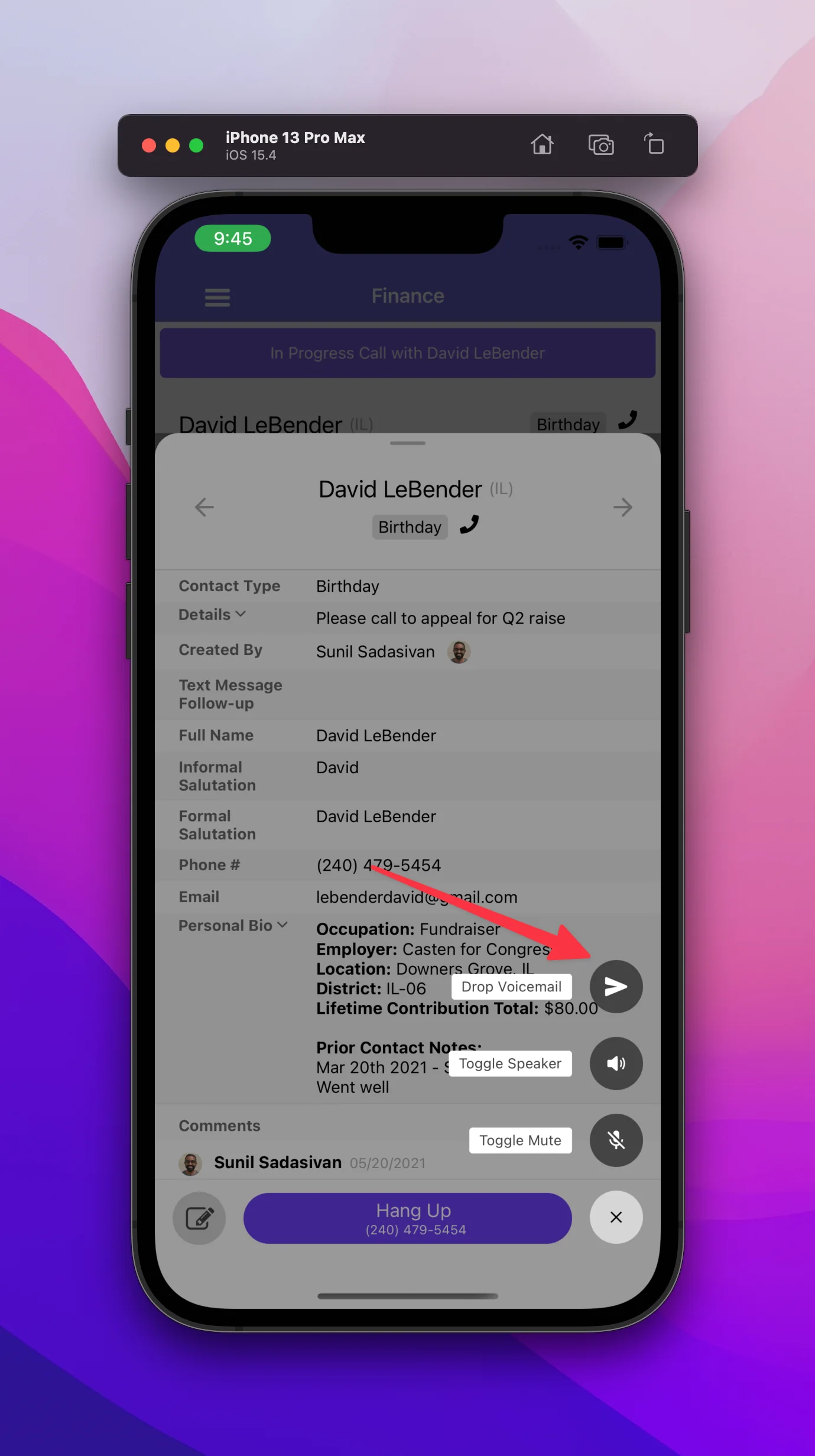
  • Call controls stay with the contact: during a call, mute, speaker, the keypad and voicemail drop sit under the contact's details and giving history, so you can keep reading while you talk.
  • Calls keep going when you leave the app: a notification shows the call in progress, with a button to end it.
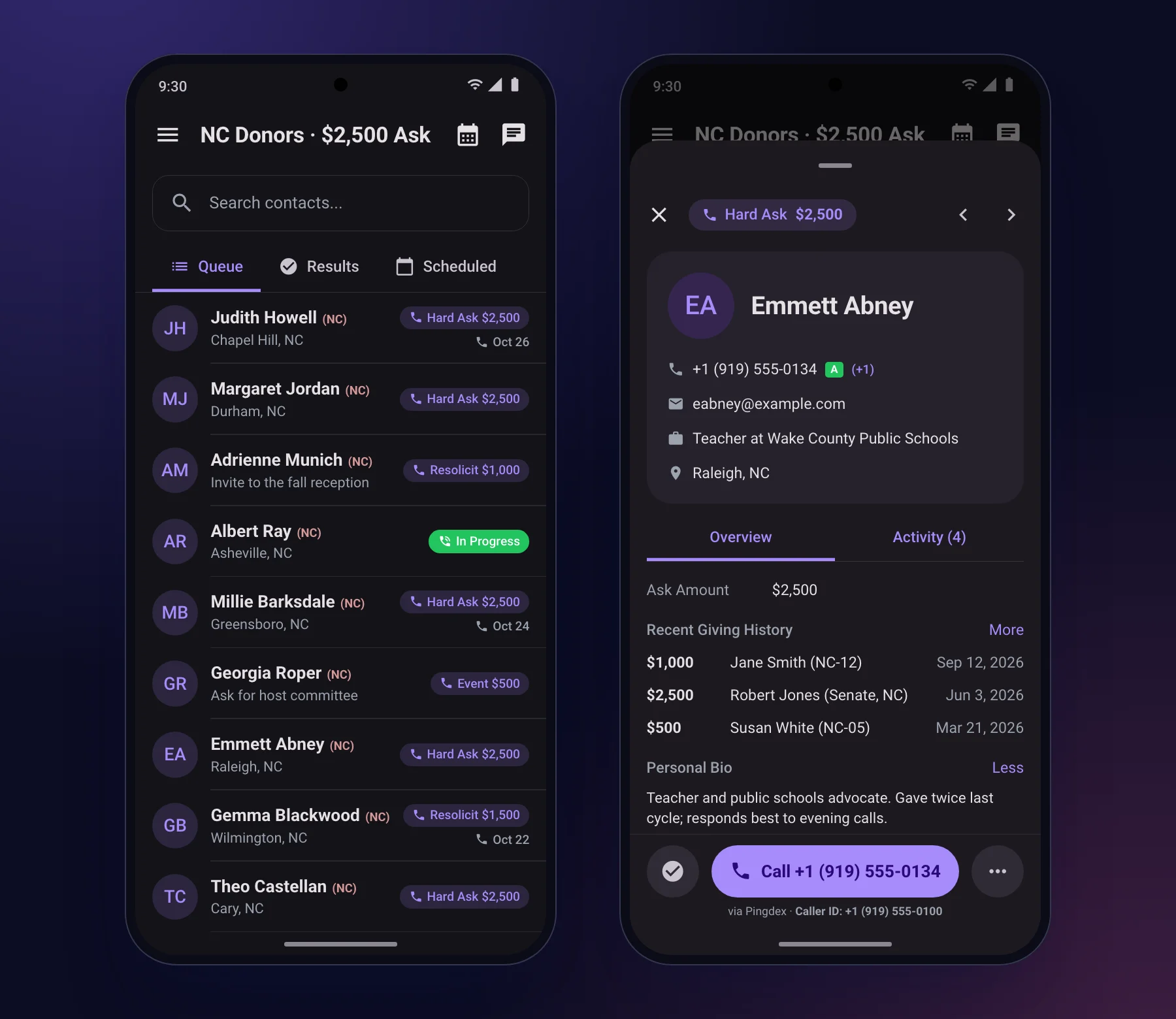
  • Dark mode: the app follows your phone's setting. To choose for yourself, open Settings and tap Appearance.
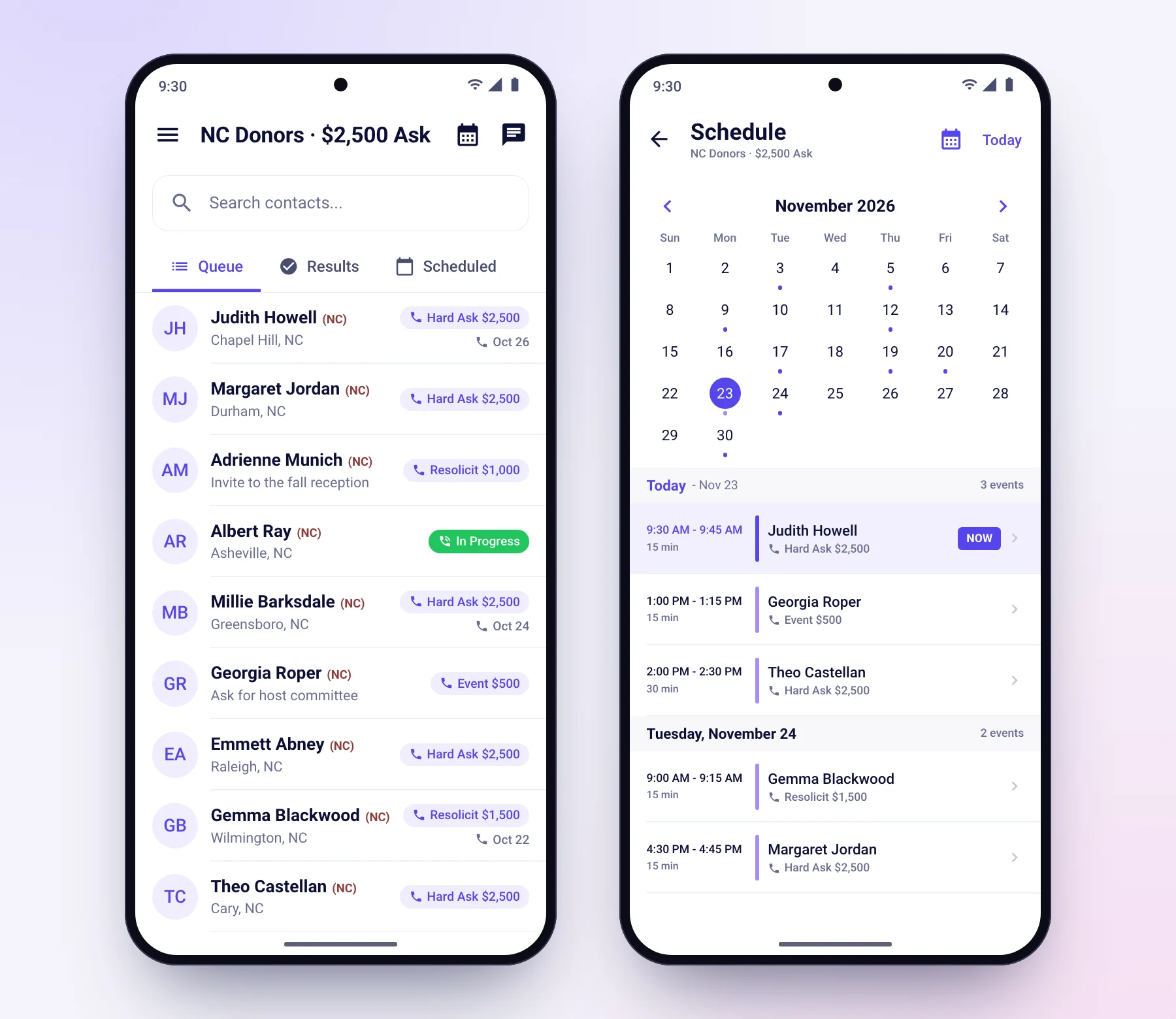
  • Month calendar in Schedule: see the whole month, with a dot on each day that has a scheduled call. Tap a day to jump to it.
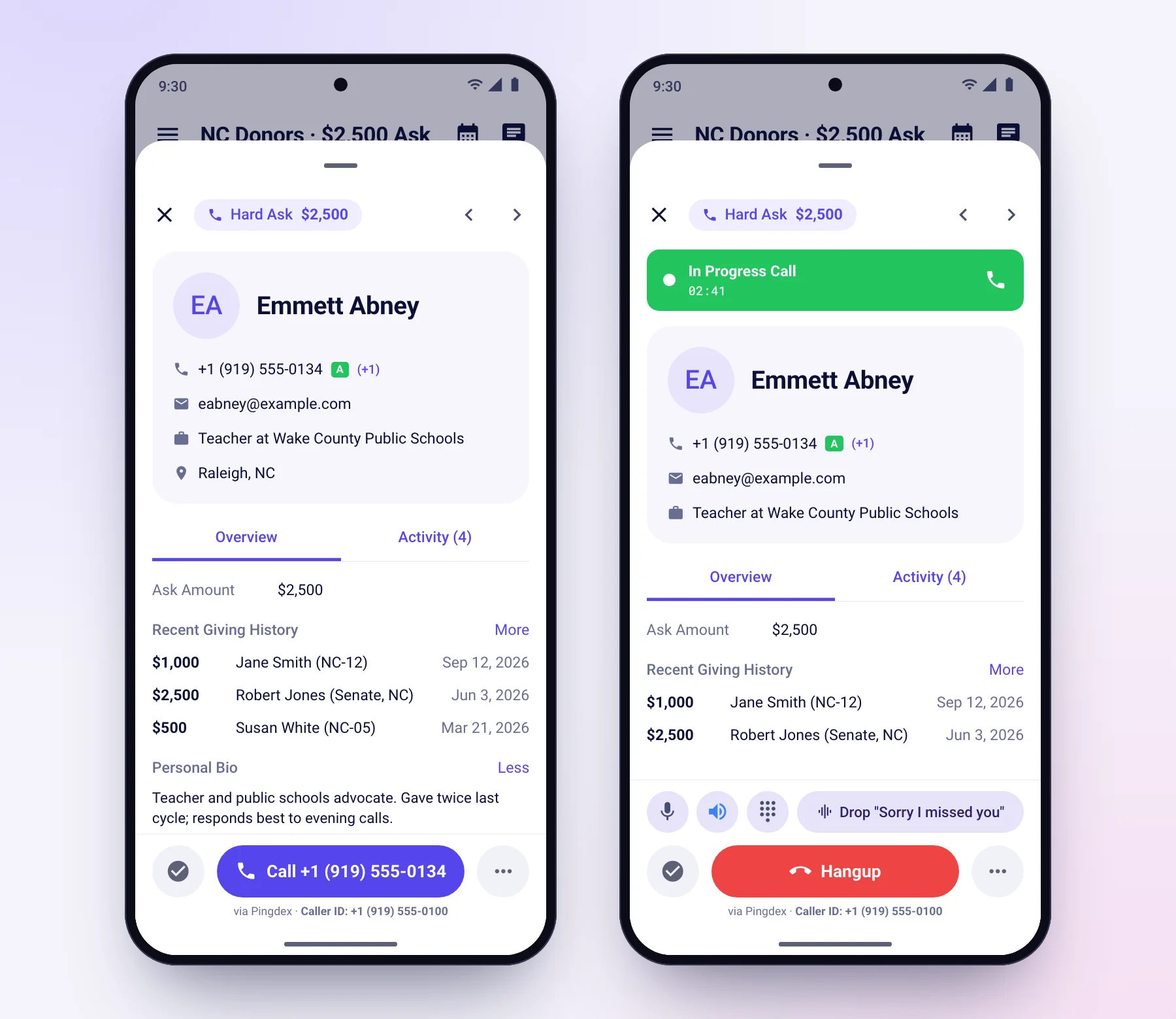
A contact in Pingdex for Android, before and during a call

The call list and a contact in dark mode

The call list and the month calendar in Schedule

How to get it

  1. Open Pingdex on Google Play on your Android phone.
  2. Tap Update. If your phone updates apps automatically, you may already have it.
  3. Open Pingdex. You stay signed in, so you can pick up where you left off.

Version 3.0 needs Android 7.0 or later.

Have questions or feedback? Send us a note at support@pingdex.app.
Introducing Shared Pre-recorded Voicemails!

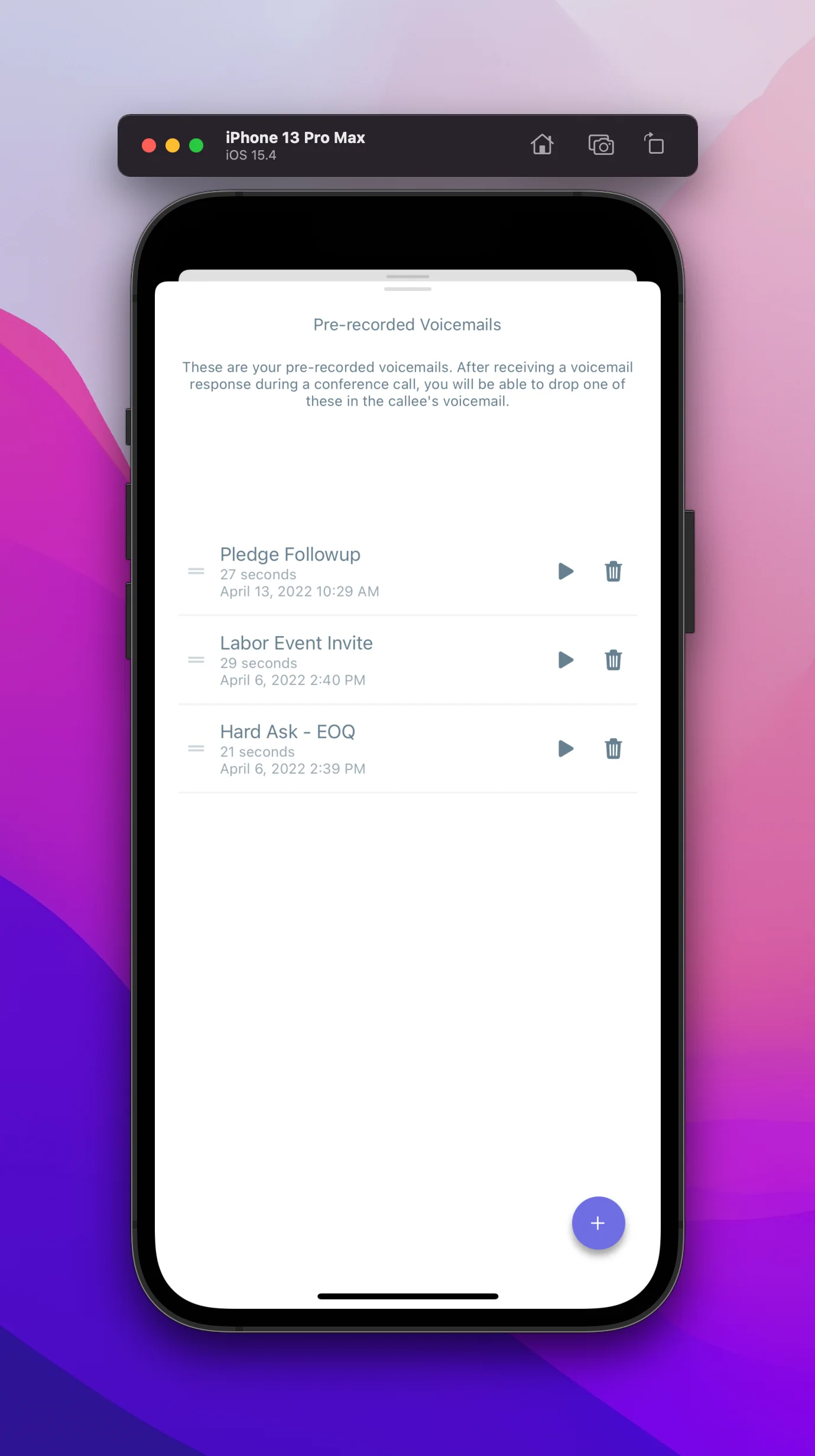
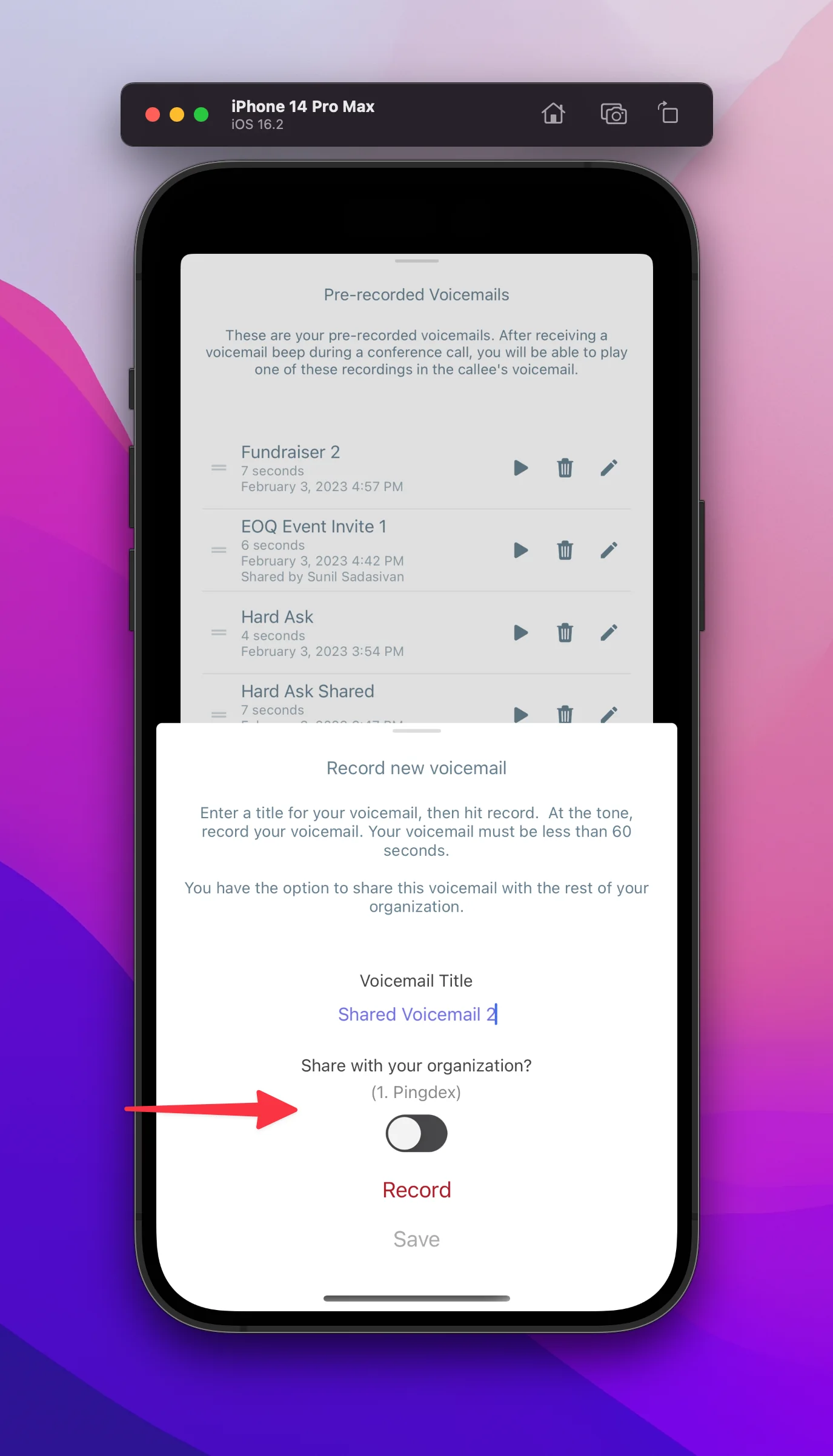
We're excited to announce our latest enhancement to the Pre-recorded voicemail feature. You can now record and share pre-recorded voicemails with the rest of your team!

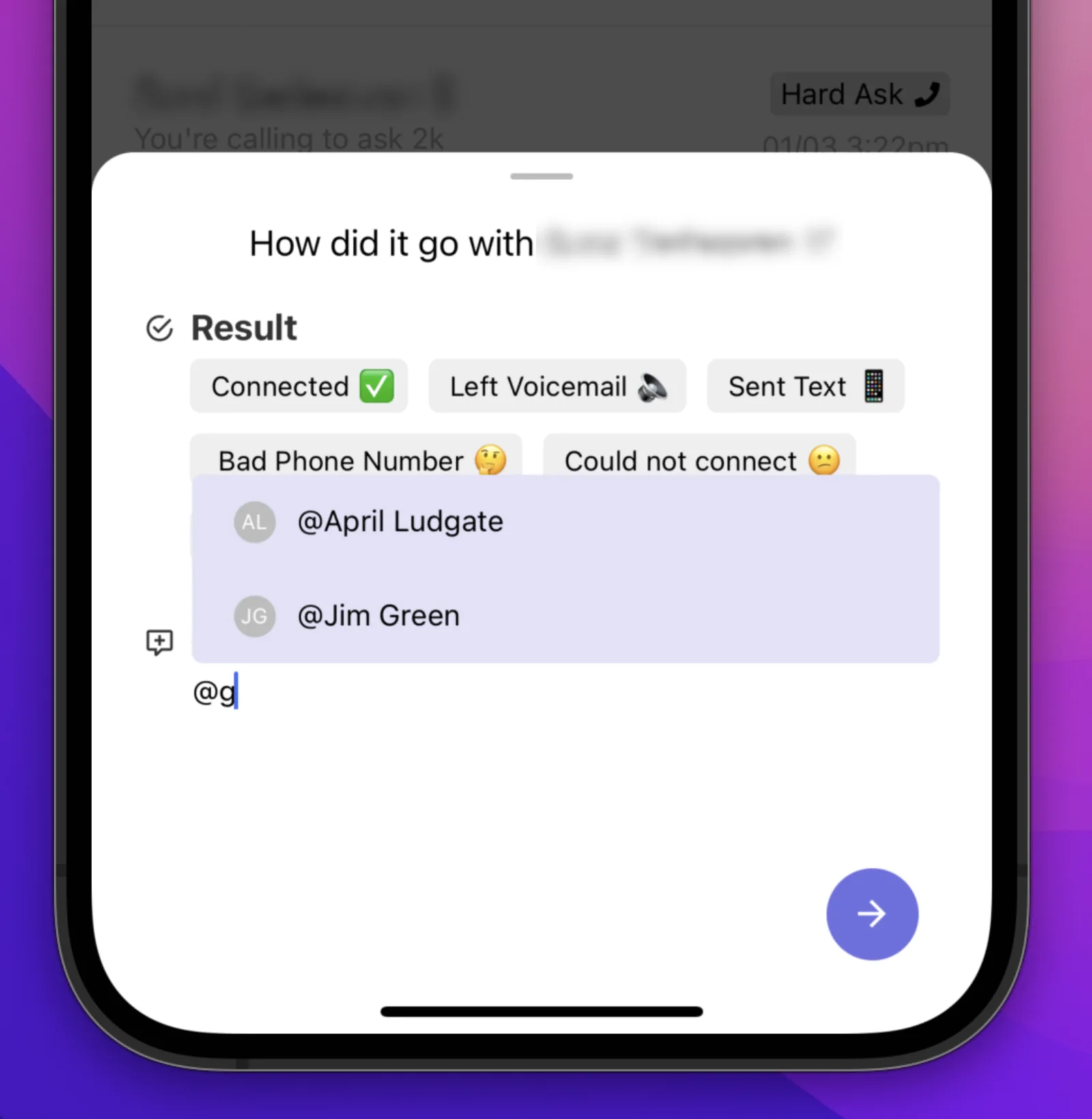
This enhancement was designed to empower your staff members to make calls and, when encountering a voicemail, seamlessly leave a message from the principal. Setting up this feature is quick and straightforward:

  1. Open the mobile app and navigate to the "Settings and Help" section from the left-hand panel.
  2. Choose "Pre-recorded Voicemails."
  3. When editing an existing voicemail or creating a new one, you'll now see a toggle labeled "Share with your organization?"
  4. Switch this toggle on to share the voicemail with your team.
Introducing Shared Pre-recorded Voicemails!

Once activated, all team members gain access to the shared pre-recorded voicemail. This allows them to effortlessly drop the message when they hear a voicemail prompt during their calls. Take advantage of this powerful feature to enhance collaboration and streamline communication within your organization.

Announcing TCPA compliant Pre-recorded Voicemails - Now available on Android and iOS

We're excited to announce the availability of TCPA compliant Pre-recorded Voicemails on Pingdex, making your fundraising calls more efficient and consistent. This feature is now supported on both Android and iOS devices.

To start using Pre-recorded Voicemails, simply navigate to "Settings and Help" on your mobile device (located in the left panel) and select "Pre-recorded Voicemails". Once you've set up your desired messages, you'll be able to seamlessly drop them into your calls.

When you hear the voicemail tone, simply tap the "Drop Voicemail" action button to send your pre-recorded message. As soon as you hit send, feel free to end the call and proceed to the next one without waiting for the voicemail to finish.

Please note that Pre-recorded Voicemails are only compatible with "Conference Call" dialing. VM Drops are not supported for calls made directly. To utilize VM drops, you must have a Conference Calling enabled subscription to Pingdex.

Announcing TCPA compliant Pre-recorded Voicemails - Now available on Android and iOS

Introducing VoIP Conference Calling on Android and iOS

We're excited to announce Voice over IP (VoIP) Conference Calling for Pingdex, now available on Android and iOS. Save 20-30 seconds between calls, and enjoy improved call quality in locations with better internet.

Easily enable or disable VoIP/Wi-Fi calling by visiting "Settings and Help" in the left panel of your mobile app.