Updates

Product updates

Dashboard updates

Every Pingdex update tagged Dashboard.

📊 CSV Upload Improvements — Intelligent Column Matching
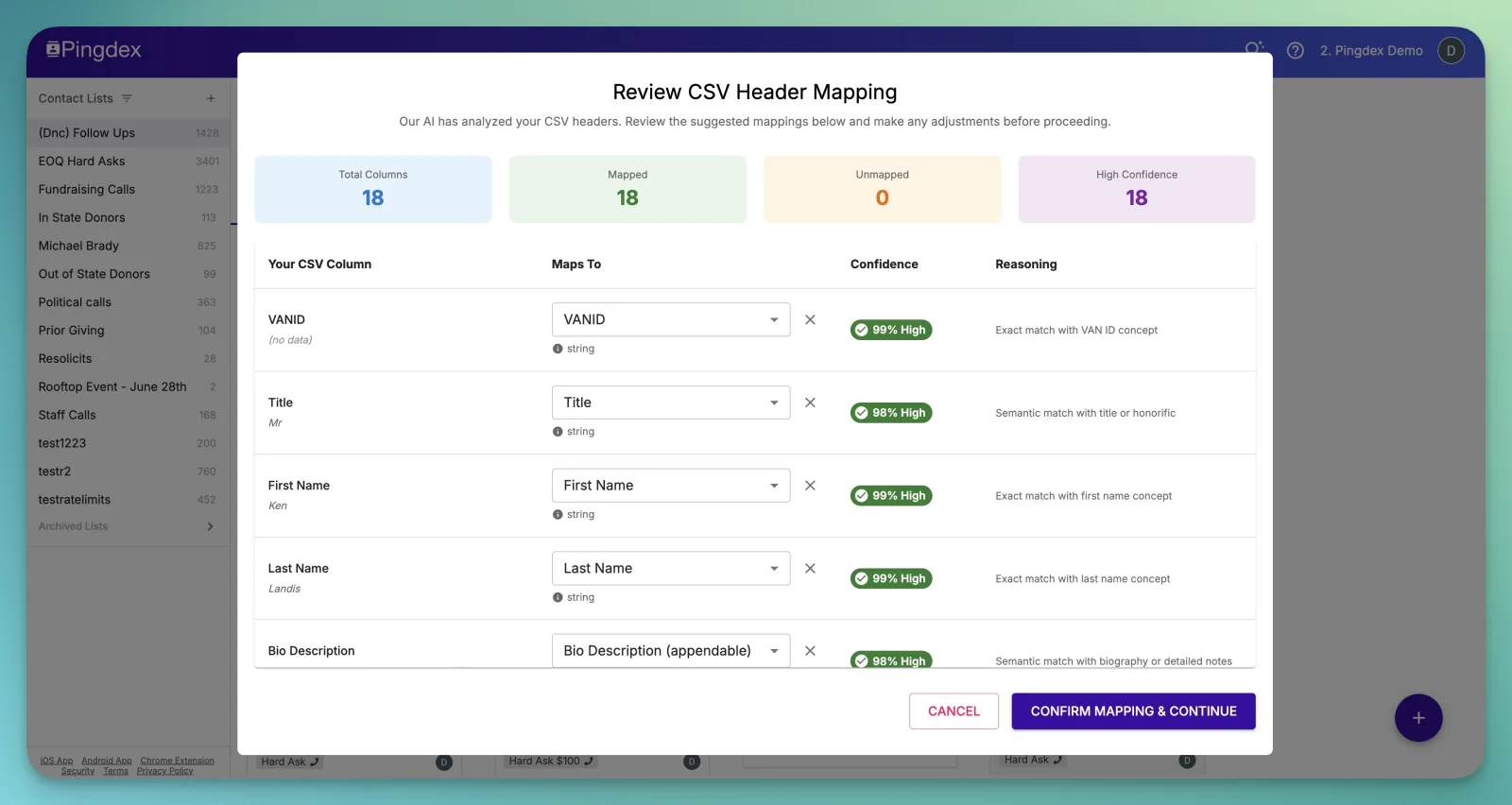
We are super excited to share a major update to a common pain point. We've made uploading your contact lists via CSV even easier!

What's New

Smarter Column Matching

  • When you upload a CSV, we'll automatically figure out which columns match which fields in Pingdex
  • No more manual mapping and fiddling with CSV tools for every upload - just drag and drop your file in CSV format and we'll handle the rest.
  • Works with any CSV format, not just our template

How It Works

  1. Upload your CSV file as usual
  2. We'll show you our suggested column matches
  3. Review and adjust any matches if needed
  4. Confirm and import!

That's it - faster, smarter, and less clicking for you.
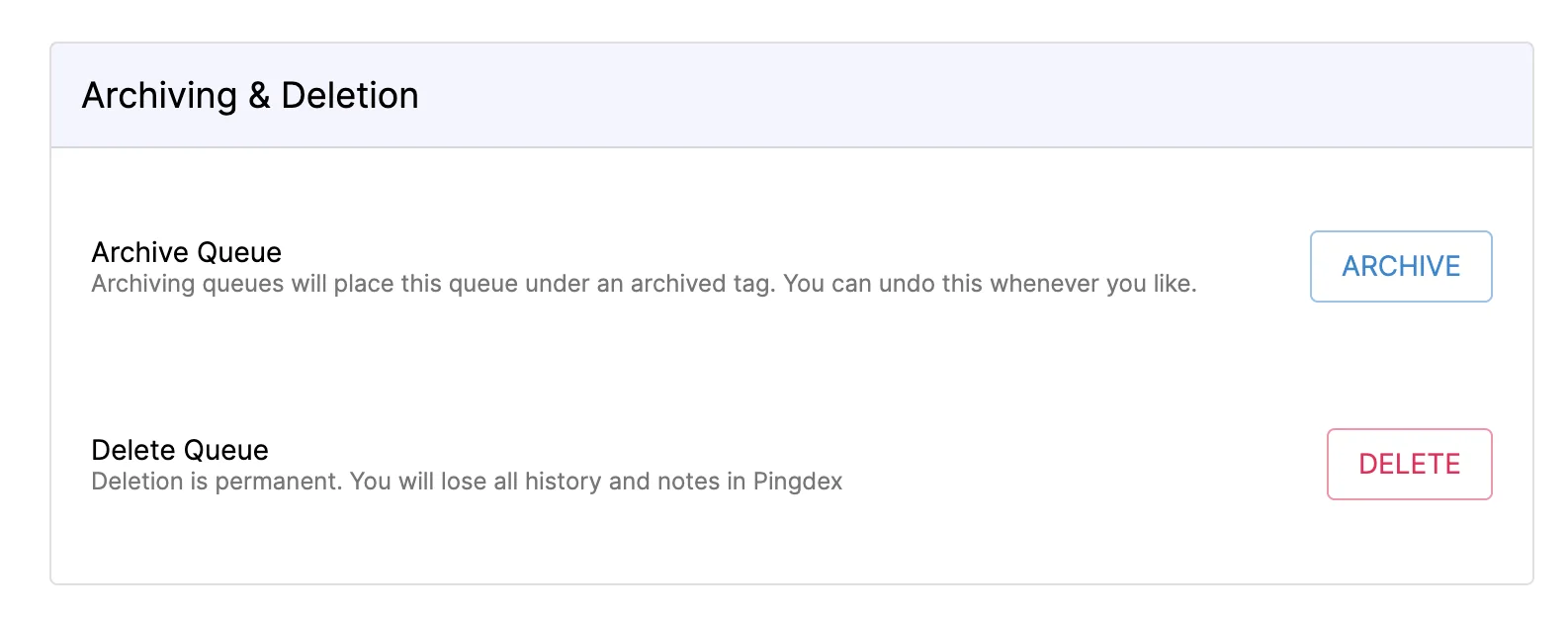
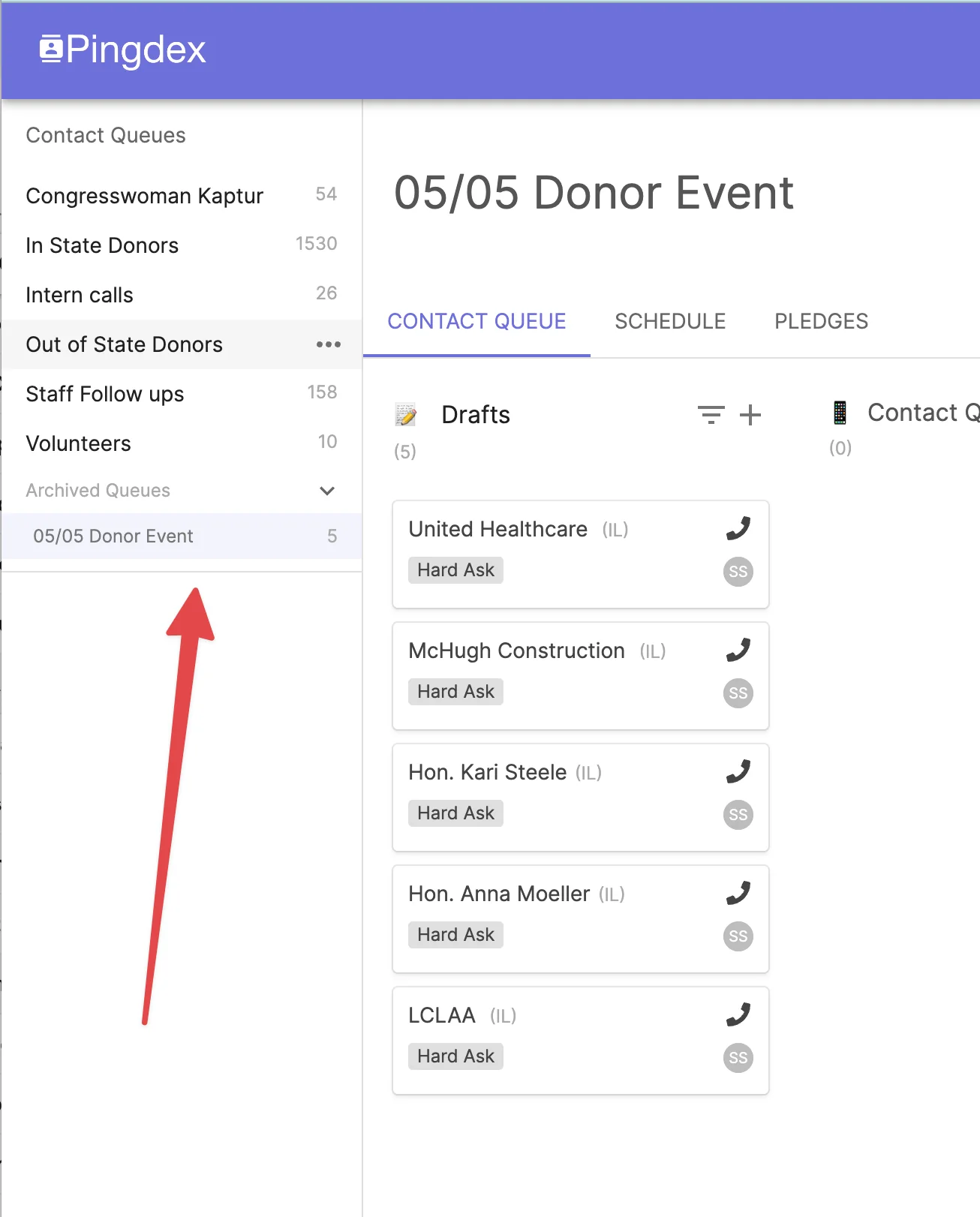
Introducing the Archiving for Contact Queues!

We're thrilled to announce our latest feature: the ability to archive old contact queues! This functionality not only helps you declutter your list of queues but also streamlines the navigation for principals on the mobile app. And you can always undo this if needed.

Follow these simple steps to utilize the new archive feature:

  1. Navigate to Queue Settings.
  2. Scroll to the bottom of the page.
  3. Locate the new section titled "Archiving and Deletion."
  4. Click the "Archive" button to archive the selected queue.
Introducing the Archiving for Contact Queues!

Once archived, these queues aren't lost. They find a new home under a distinct "Archive" subsection in your dashboard list, making it easy to retrieve or review them when necessary.

Introducing the Archiving for Contact Queues!

We hope this helps with your workflows and keeps your queue list straightforward!

Improvements to the Pingdex Bulk Uploader via CSV

We are thrilled to announce significant enhancements to the Pingdex bulk uploader for CSV files! Our latest update offers greater flexibility and compatibility with various CSV formats. Here are the key improvements:

  • Effortless NGP (7 and 8) Export CSV uploads: You can now directly upload NGP Export CSVs into Pingdex
  • Grassroots Analytics CSV support: Pingdex now accommodates Grassroots Analytics CSV files
  • Sterling Data Company CSV support: Pingdex now accommodates Sterling Data Company CSV files.
  • Inclusion of unrecognized fields: If your CSV includes fields that Pingdex does not recognize, we will still incorporate them into the contact bio information

To leverage these improvements, simply click the Bulk CSV Upload option on the purple Plus Icon Button on the bottom right hand side of your screen and click "Bulk Upload via CSV." Simply drag and drop your CSV list, or click to upload. We'll automatically detect the type and formatting of the list file and upload that for you automatically. If there are any issues or errors, we'll display that for you.

We are committed to continually refining the Pingdex upload process. If you find an upload not working for you — or ever encounter any issues or have suggestions for improvements, please don't hesitate to reach out to us at support@pingdex.app. We are eager to assist and enhance your uploading experience with Pingdex.

Share Email and Text Message Templates across Queues

Share Email and Text Message Templates across Queues

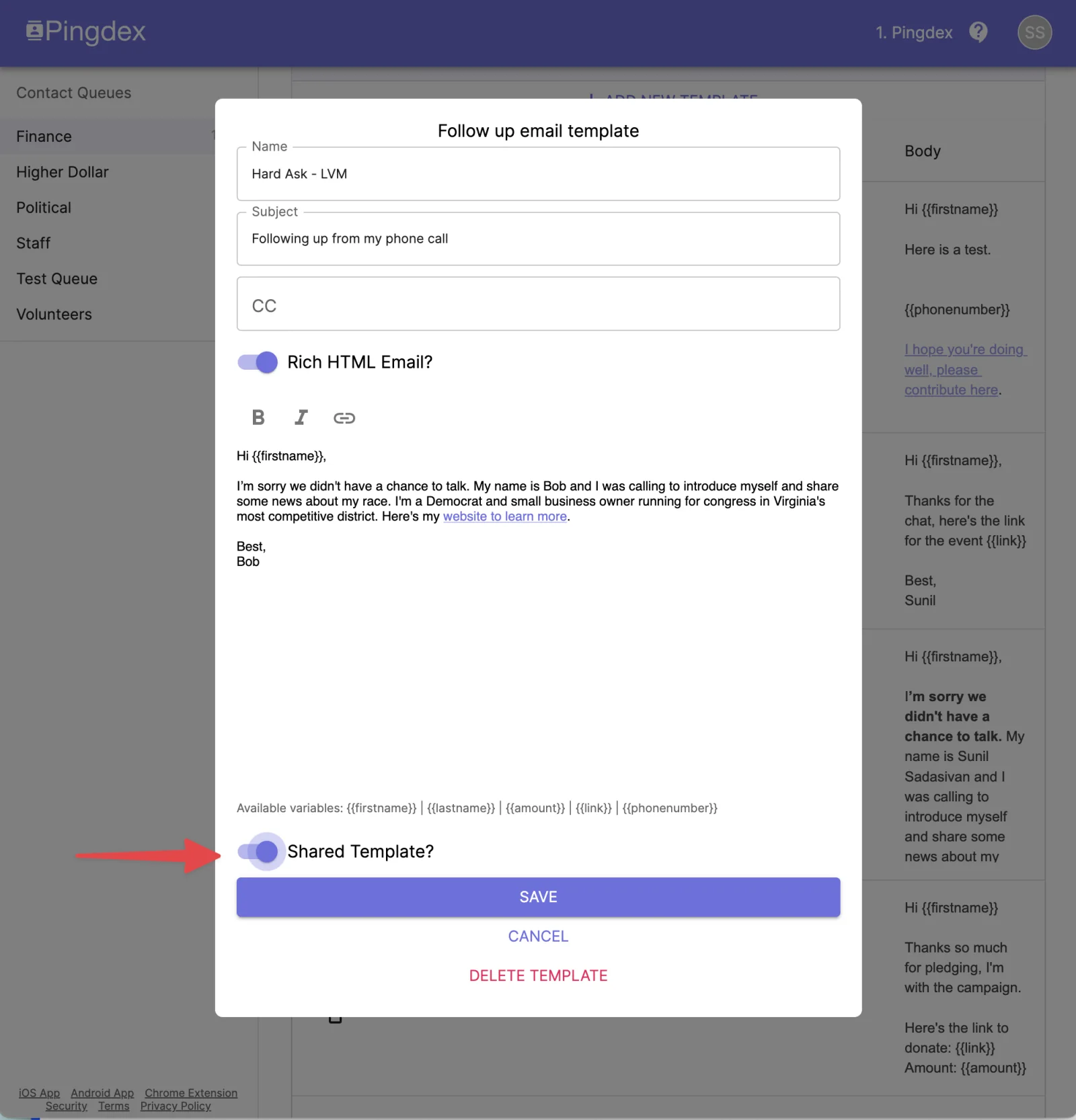
We are excited to announce the latest enhancement to Pingdex - the capability to share email and text message templates across all of your queues! This new feature streamlines the management of frequently used global templates, improving efficiency and consistency in your communication.

To create a unified template, follow these simple steps:

  1. Navigate to your queue settings.
  2. Select either Text Message or Email Templates.
  3. Create a new template or edit an existing one.
  4. At the bottom of the template editor, you'll find a "Shared Template?" toggle.
  5. Switch it on to make the template available across all of your queues.

With this update, we hope maintaining consistent follow up across different queues is much easier for you!

Follow-Up Reminders in the Pingdex Dashboard!

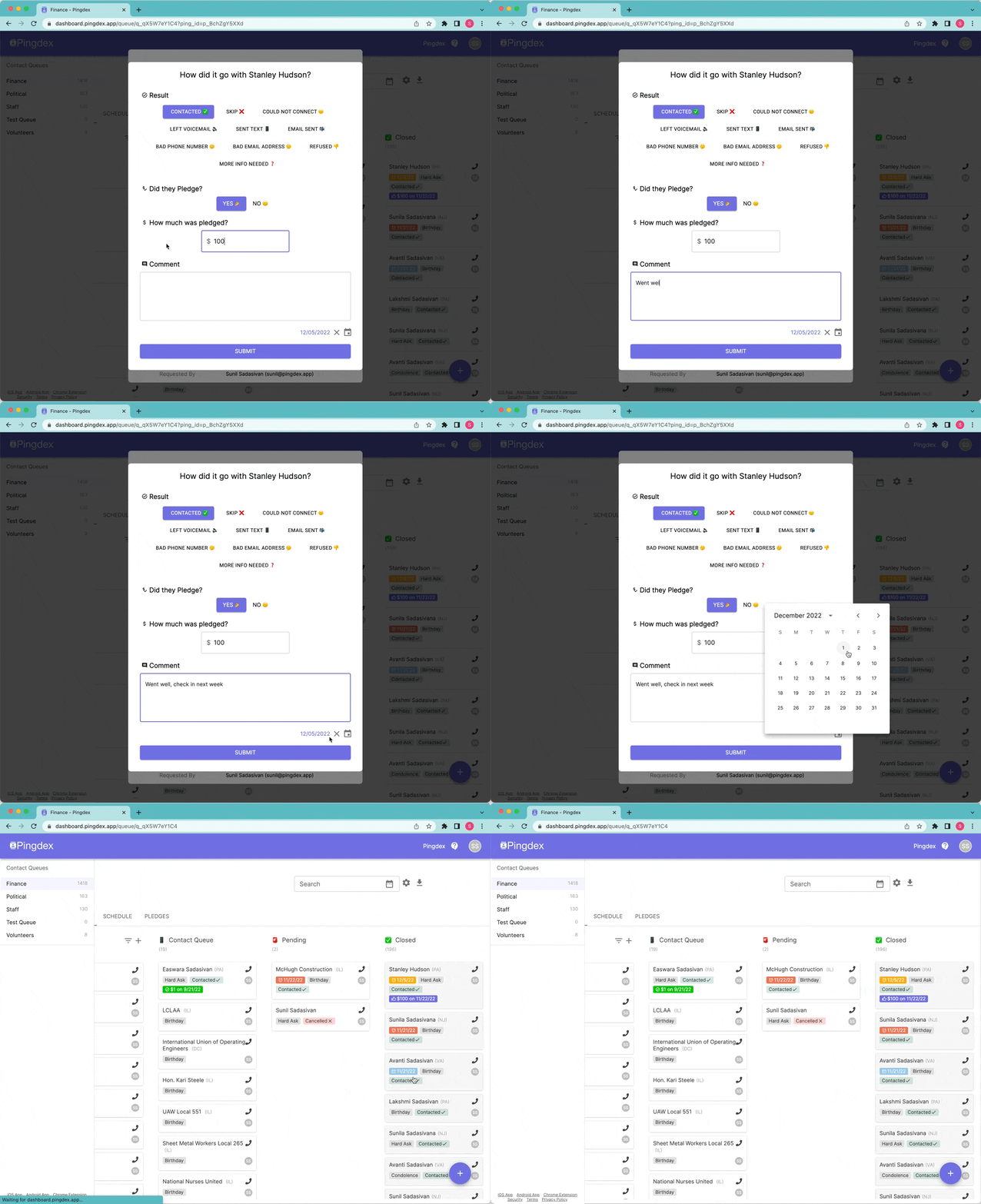
Introducing Follow-Up Reminders, a convenient new feature to help you stay on top of your follow-ups directly from the Pingdex dashboard.

Here's how it works:

  1. While entering results on the dashboard, you'll see a calendar icon next to the submit button. Click this icon to select a Follow-Up Reminder date (refer to the GIF above for an example).
  2. In the dashboard, a yellow chip indicator will display the Follow-Up Reminder date.
  3. On the reminder date, you'll receive an email notification and the relevant cards will be automatically moved to the top of your list.
  4. The reminder will be cleared once a follow-up is sent or if you choose to clear it manually.
Follow up reminder demo

We understand the importance of timely follow-ups and hope this new feature meets your needs. As this is a recent addition, we'd love to hear your feedback on its functionality and any suggestions for improvement.

Earlier updates